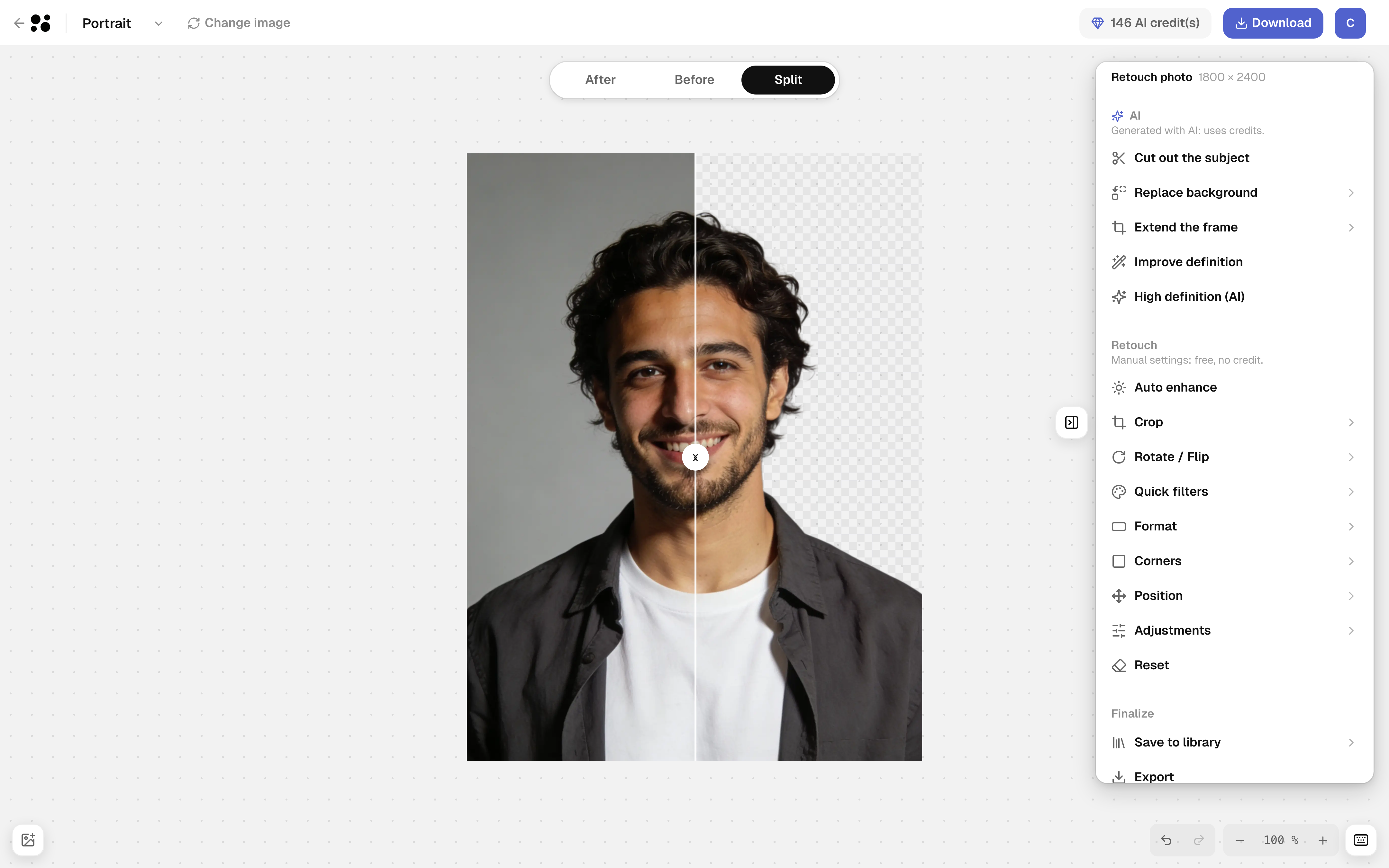
Cut out the subject
The background becomes transparent, ready for any color or layout. Drag the divider to compare.
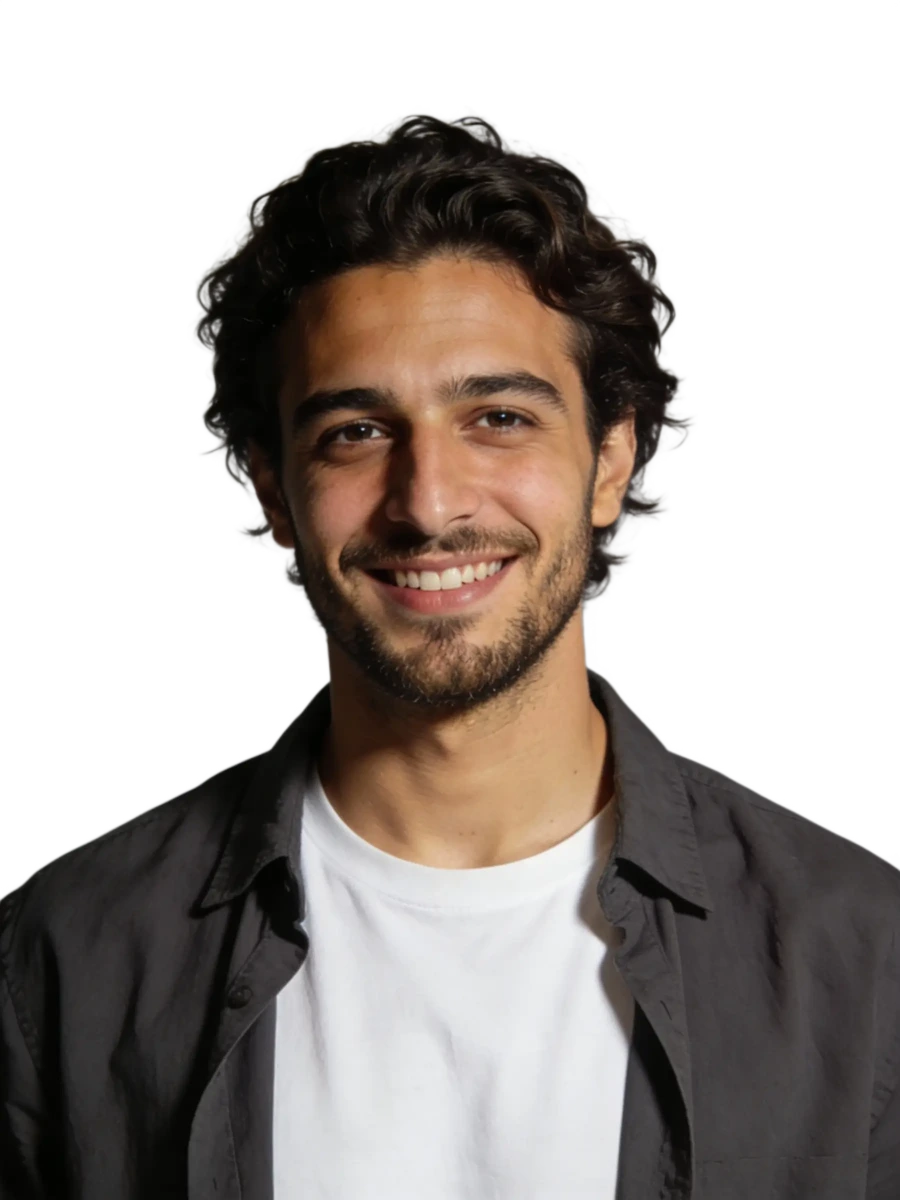
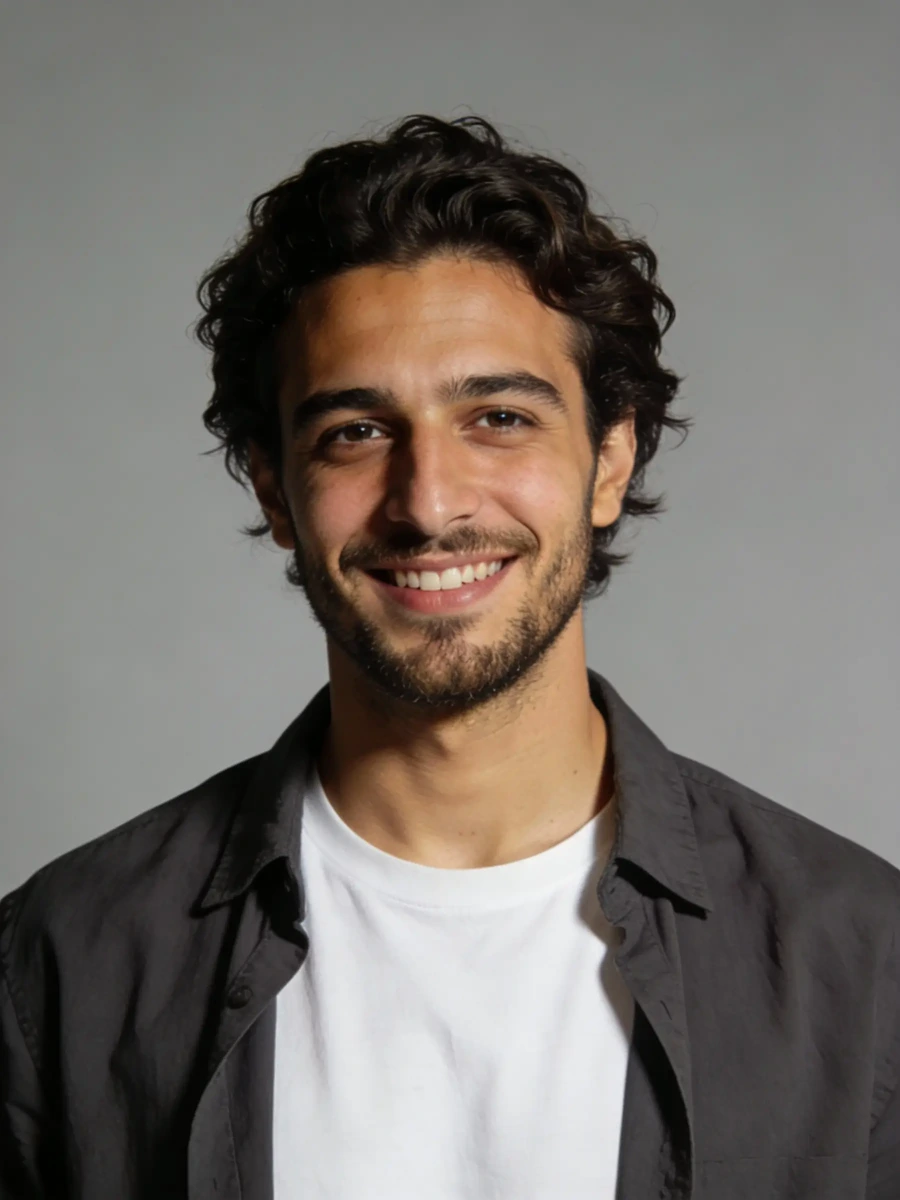
Cut out a subject, extend the frame or improve definition, right in Sesame. Then crop, rotate, add a filter or fine-tune the light. Your original photo is always kept.
See the AI editsAI, ONE CLICK AT A TIME
Each AI edit uses one credit. If it fails, you get the credit back.
The background becomes transparent, ready for any color or layout. Drag the divider to compare.
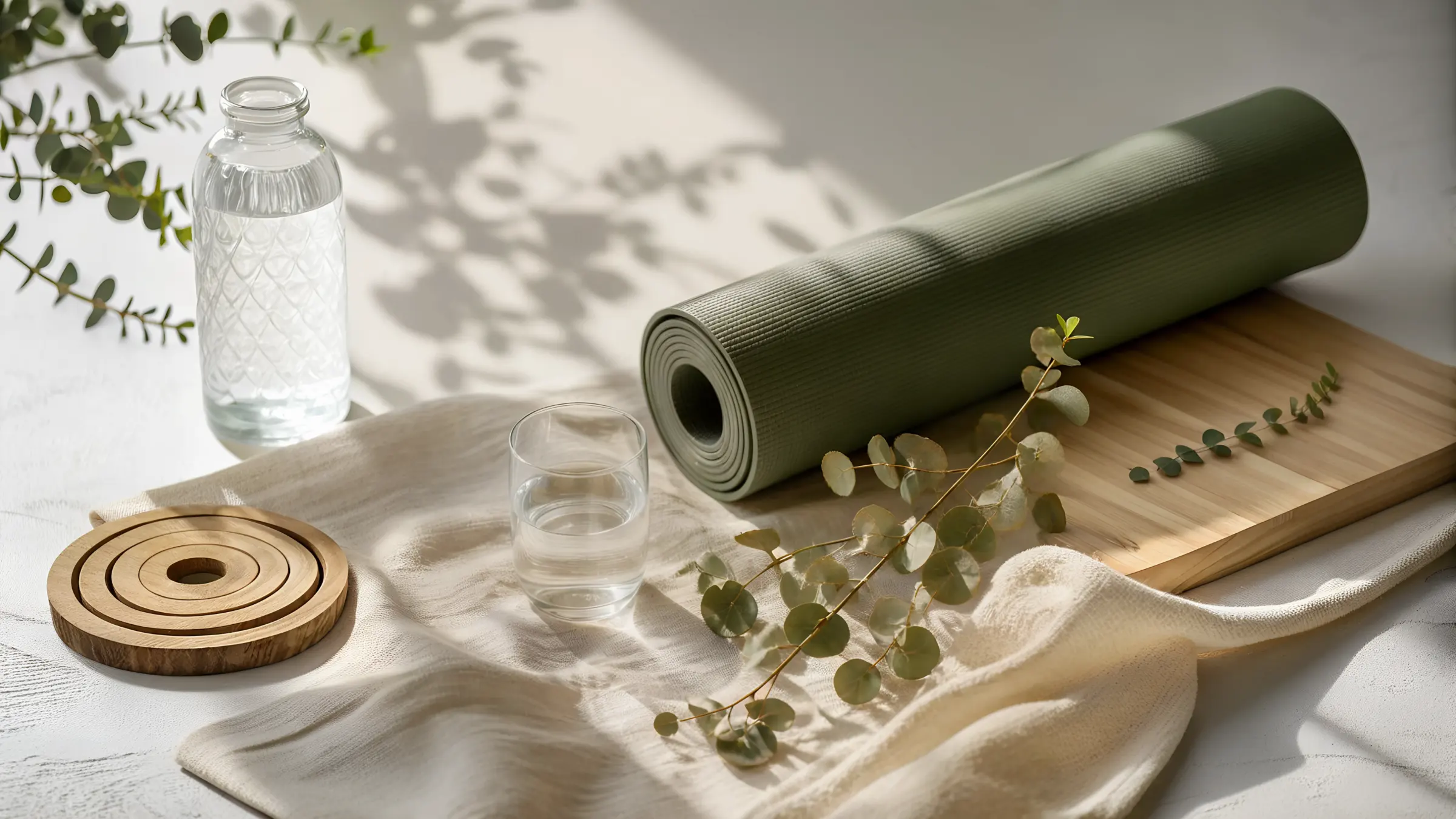
Choose 16:9, 4:3, 1:1 or 4:5. The AI continues the scene around your photo, without cropping it.
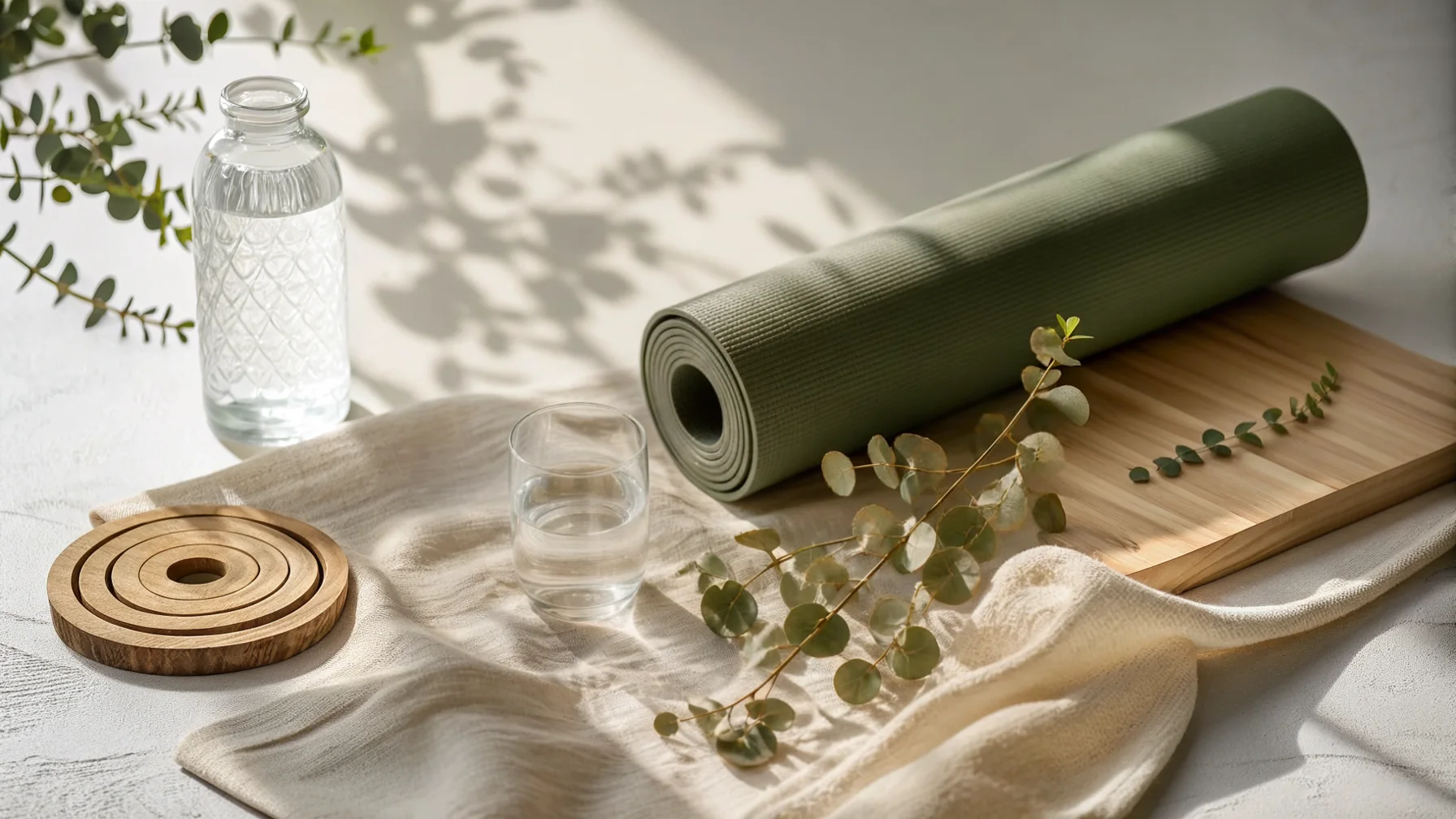
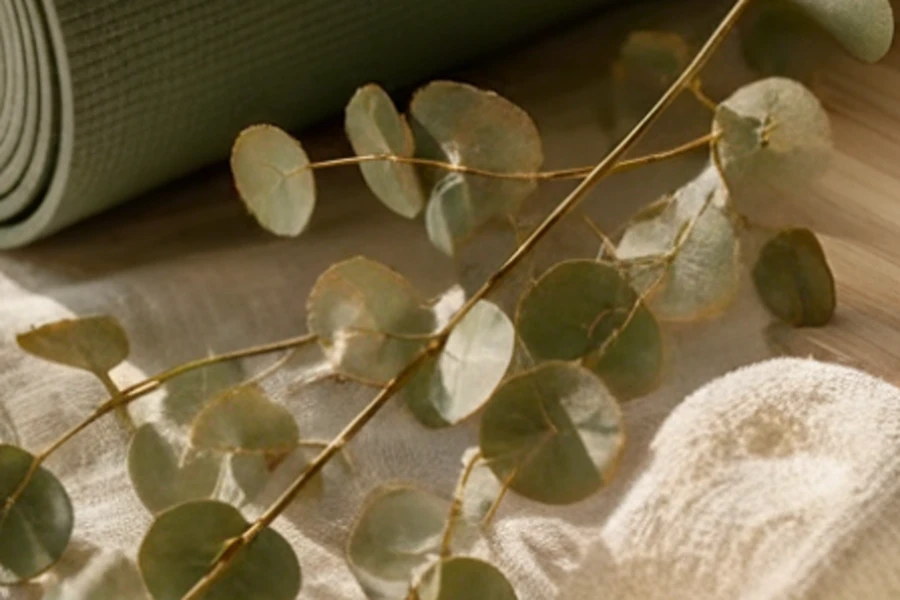
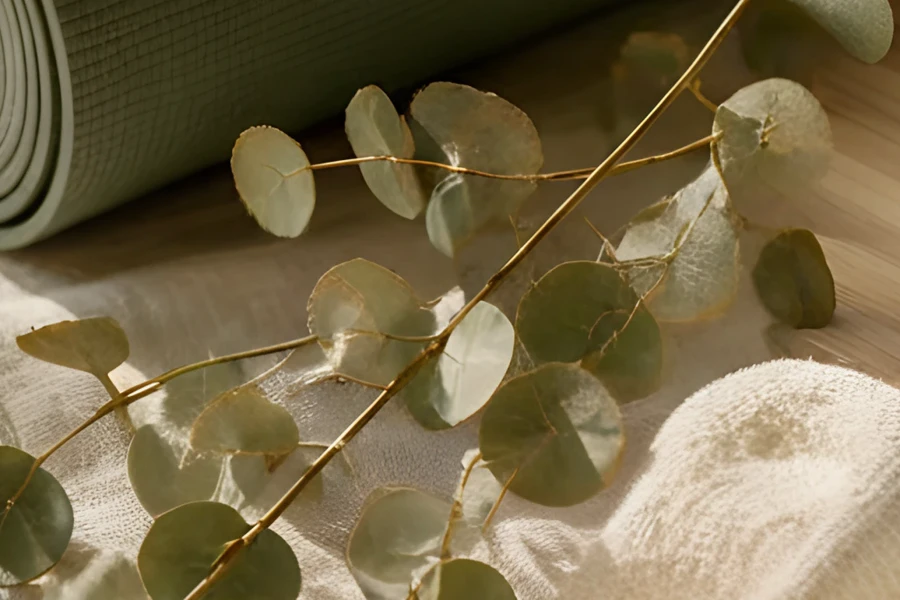
More pixels, finer details. Here, from 1792 to 4096 pixels wide.
Real results, made in Sesame and shown as they came out.
BEFORE AND AFTER
Each edit stacks on the previous one, and the original photo is always kept. Switch between before and after, or compare both on either side of a divider.
Step back or forward through every version, with ⌘Z and ⌘⇧Z.
Pinch, use your trackpad or press + and −.
Your project saves itself a moment after each change.
MANUAL TOOLS
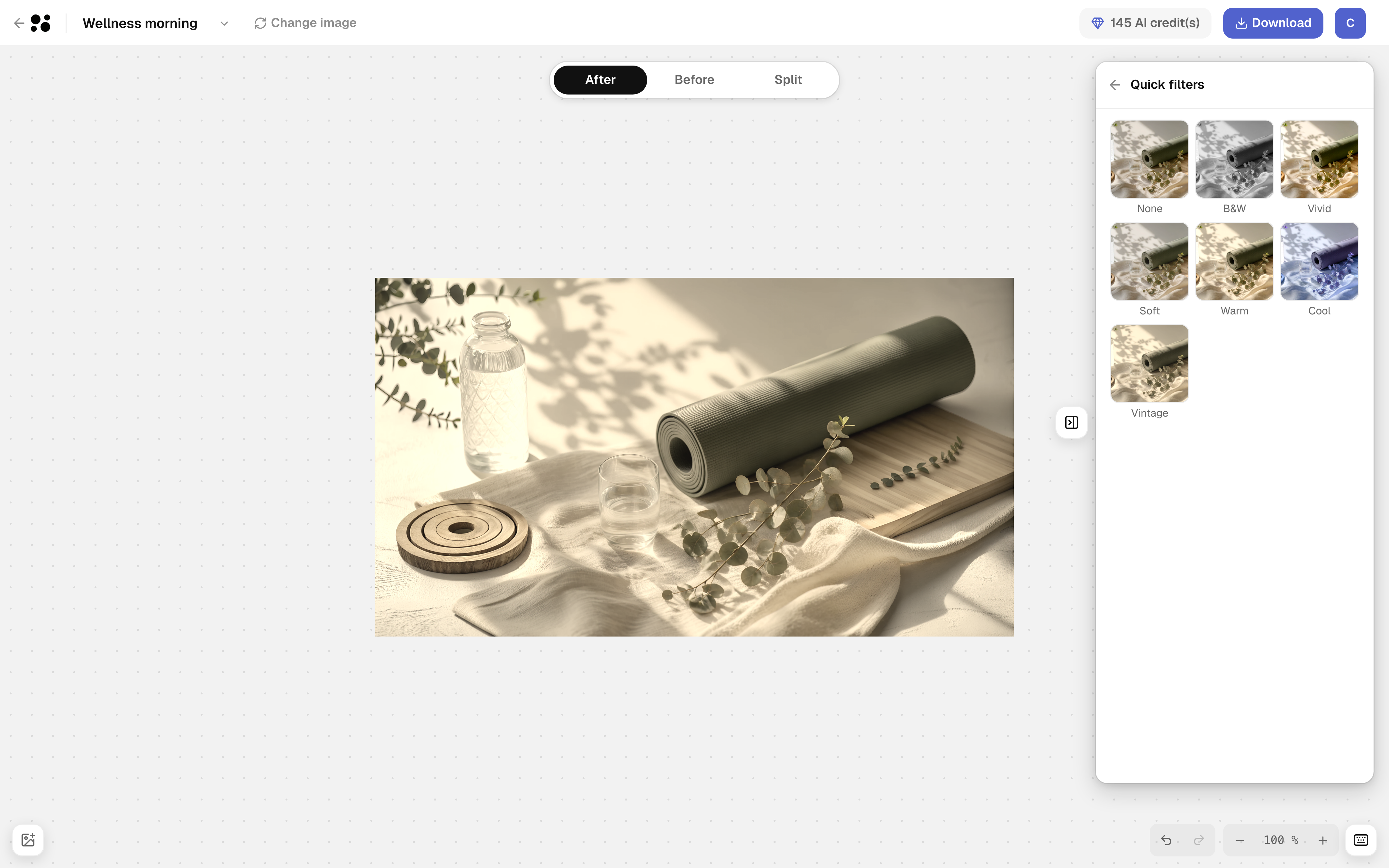
Crop, rotate, add a filter or set the light yourself. Manual settings use no credit and show up live on your photo.
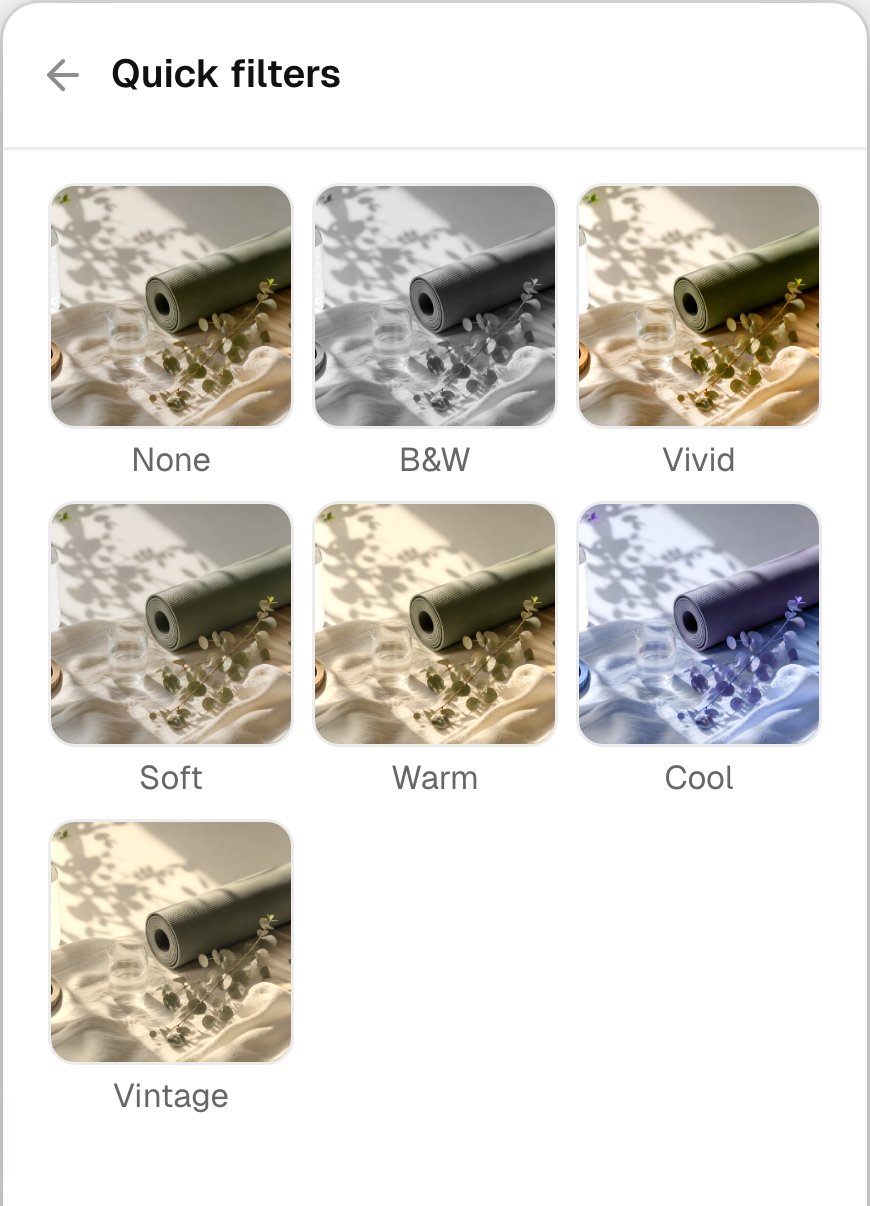
Seven looks, from black and white to vintage, previewed on your own photo.
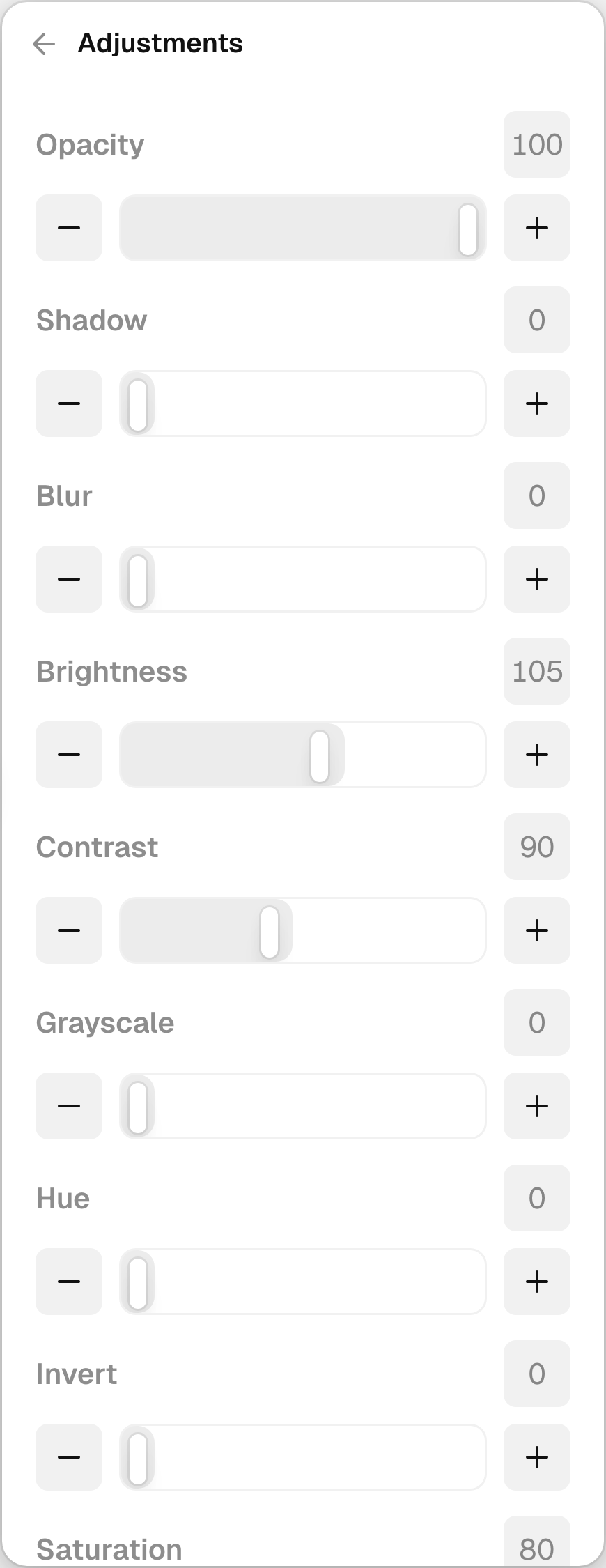
Opacity, shadow, blur, brightness, contrast, grayscale, hue, invert, saturation and sepia.
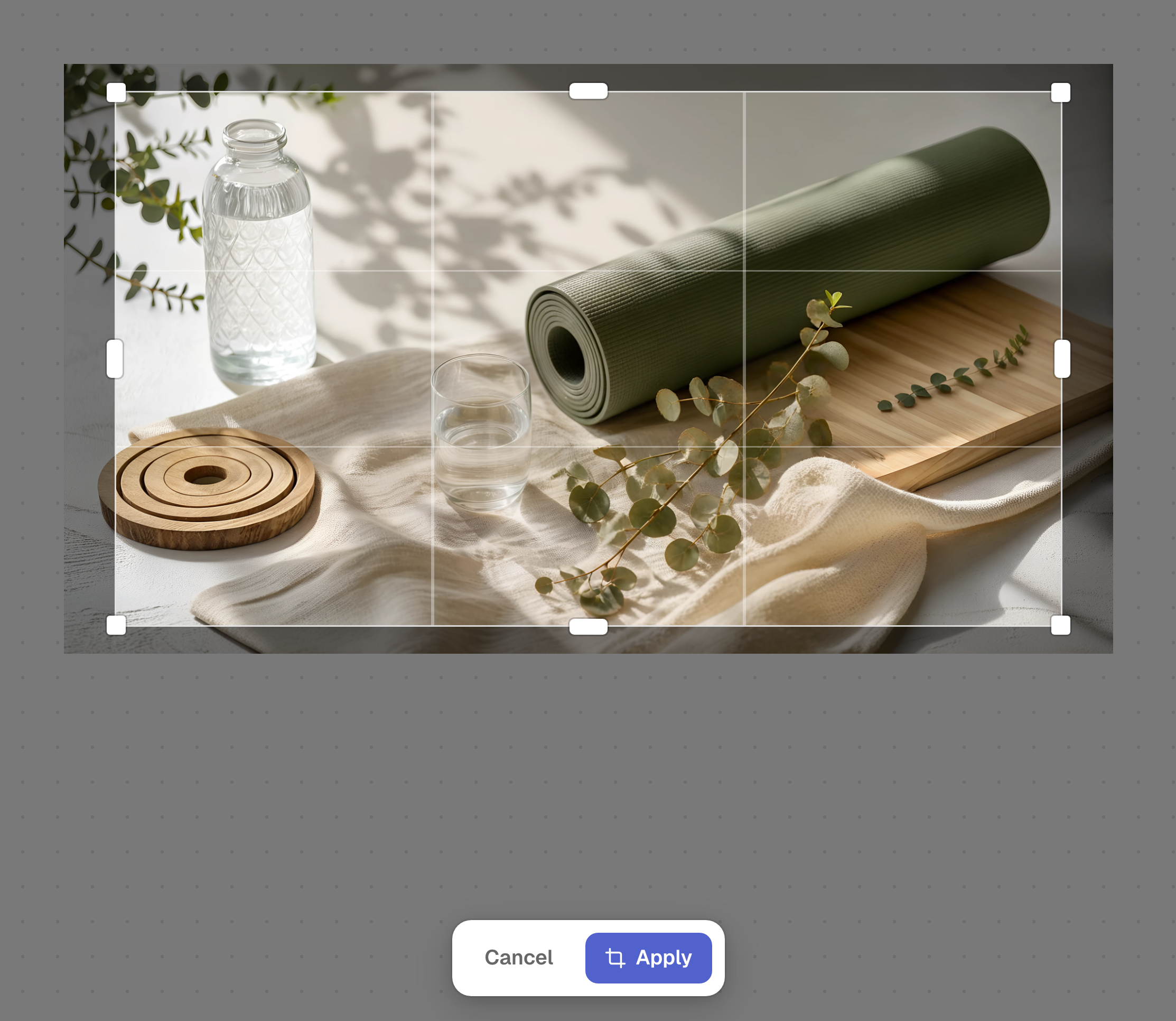
A free frame with a rule-of-thirds grid, applied in one click.
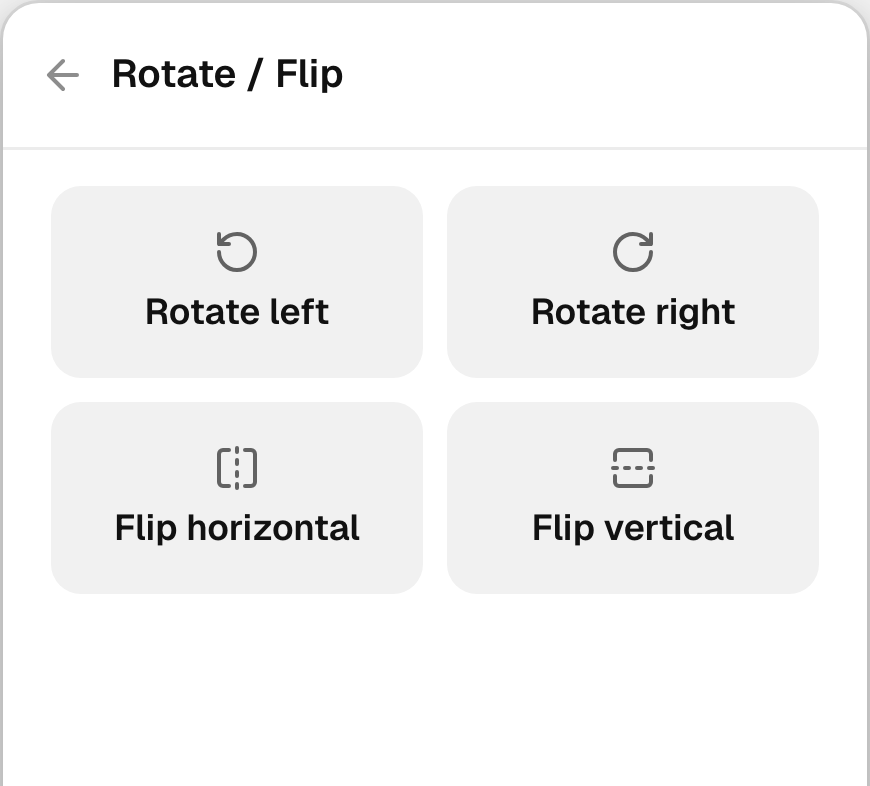
Quarter turns to the left or right, horizontal and vertical mirror.
One click for a little more light, contrast and color.
14 formats, including 1:1, 4:5 and 16:9, then square or rounded corners.
Back to neutral settings in one click.
YOUR PROJECTS
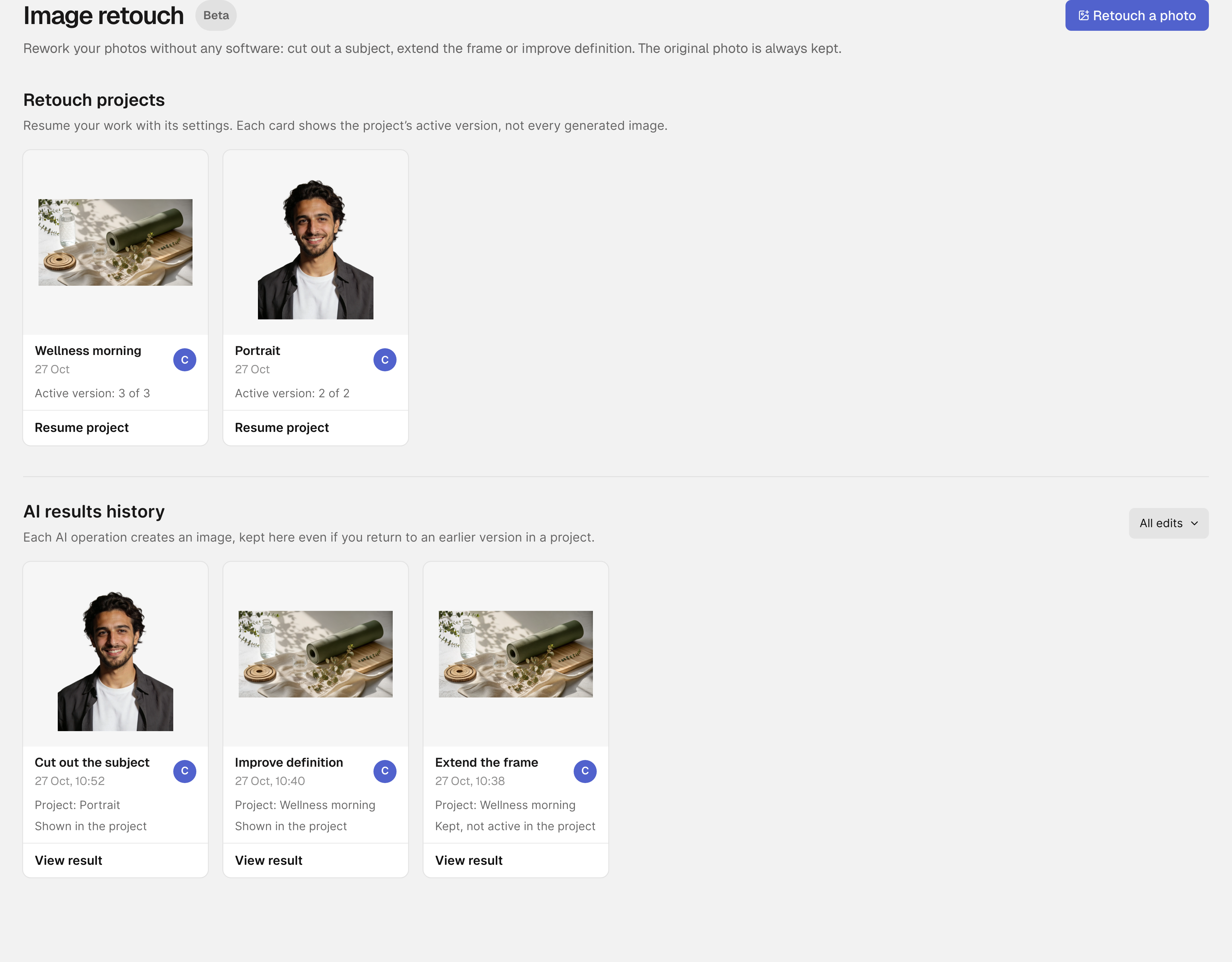
Every photo you edit becomes a project, with its versions and settings. Resume it, rename it or duplicate it whenever you like.
EXPORT
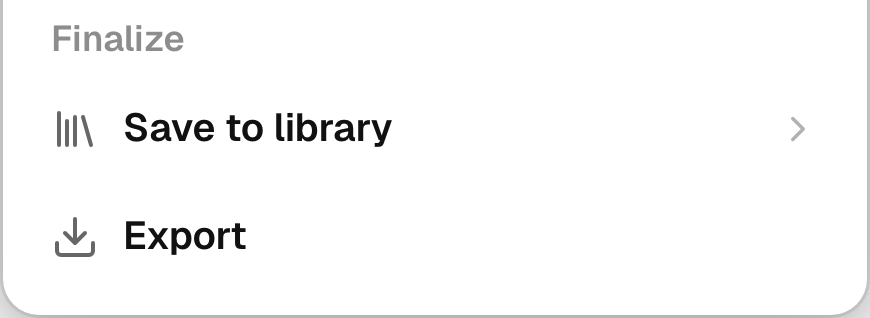
Download a PNG with all your settings applied, or save the image to your library. When you pick a photo for your website, your edits are waiting in their own tab.
THE DETAILS
16:9, 4:3, 1:1 or 4:5, never cropping your photo.
An extended frame goes up to 4096 pixels per side.
And it comes back to you if the edit fails.
Shared with Logo Studio and Design Editor.
Undo, redo, zoom and save, each one key away.
Upload a file or pick one from your media library.
Hide the side panel and give your photo all the room.
The panel turns into a drawer at the bottom of the screen.
WHAT YOU GAIN
Everything happens in your browser, right next to your website.
A portrait photo becomes a banner, and its subject stays whole.
A small photo gains the definition a large screen asks for.
The original is kept and every step can be undone.